
Quick Tour
Click on the items below to view. Scroll down to see more. Go to bottom
Table Selection
See all the tables of your restaurant in the main screen
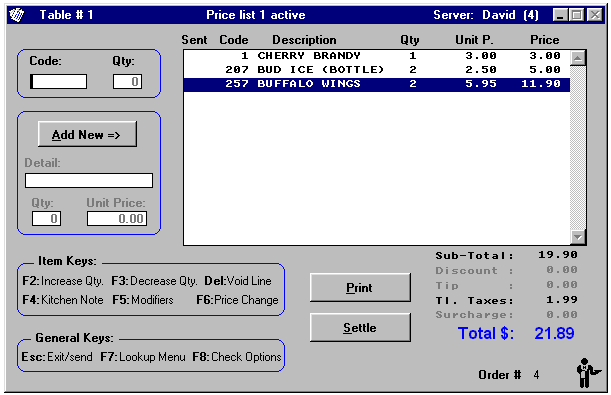
As you enter the program, the table layout screen will appear displaying all the available tables as table icons. And by entering these table icons, you will be able you to create your Dine In orders.

Order Entry
See all items in a table's order in the Order Entry window
Below is the order entry window. If you need to perform actions related to a particular item already on the activities pad, like a quantity change, add a comment for the kitchen, etc. you will need to use the ITEM KEYS.
Unlike the ITEM KEYS, that will only affect the items which are on the order's activities pad, the GENERAL KEYS, will allow you to change options related to the current order as a whole.
Pressing the ESC key on your keyboard exits the order entry window for the current table and sends the changes to the kitchen.
Sales by Server (Part 1)
Monitor restaurant revenue by server / waiter / barrista / etc.
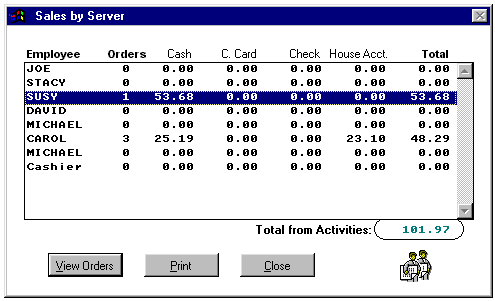
This report displays a list with all your servers ordered by their server number. And for each of your servers, you will be able to see:
- The total numbers of already settled orders.
- The partial amount he has sold with Cash, Credit Card, Check and House Account.
- The total amount he has sold (that is, the result of adding the latter four amounts).
Sales by Server (Part 2)
See how each revenue by employee trend in a graph
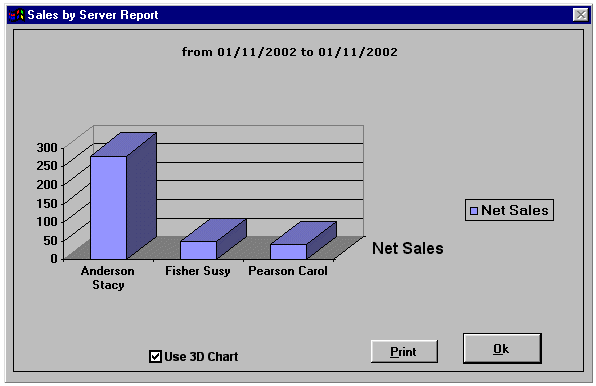
This report shows the total sales in the report date range grouped by servers. You can use this report to see how much each server is doing in sales. Most reports have the option to be displayed using graphics.
Customers with Unpaid Balance
Make sure all your receivables gets collected
When you generate a sale and the customer does not pay this invoice in full, a balance will be created for this customer. This option displays all such customers.
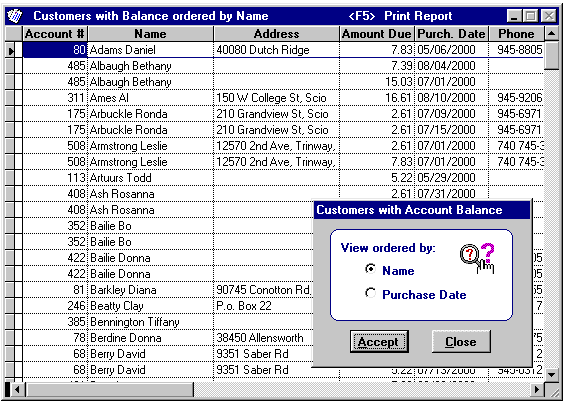
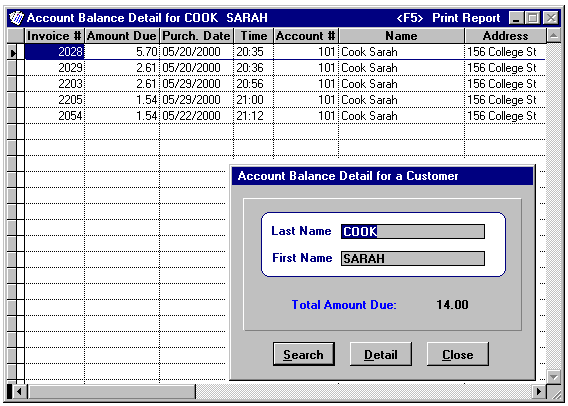
You can also view the total amount due for a particular customer. This detail can also be printed, which is useful for prompting a customer to settle his account.
Customer Account Payments
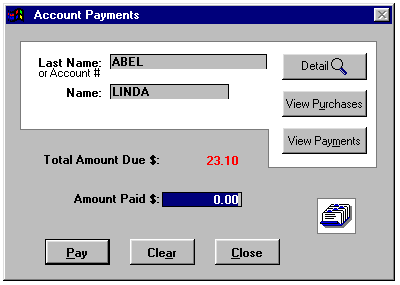
A window to settle customer balance due
If you generate a sale and the customer does not pay this invoice in full, a balance will be created for this customer. At a later date a payment can be applied here to these unpaid invoices.
Issue Customer Credit (Advance Payment)
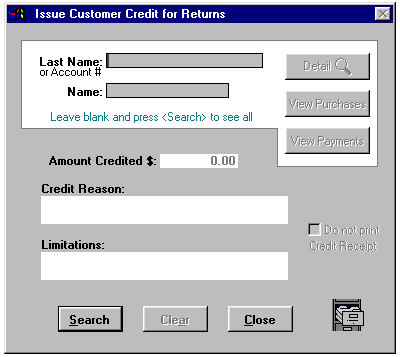
Instead of a refund, issue the customer a credit, for use later
Customer Credits are sometimes issued when you get items returned from a customer, but do not want to void the respective invoice. For issuing a Customer Credit you will only need to provide either the customer name or his account #.
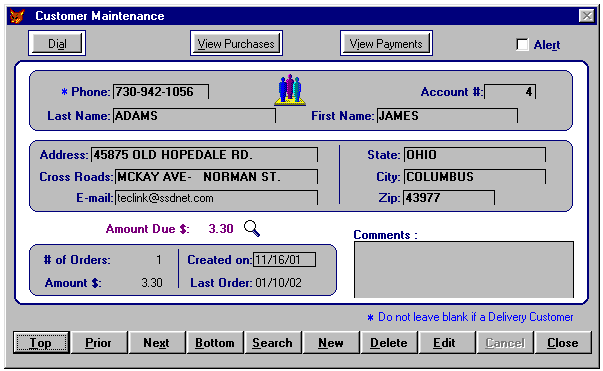
Customer Maintenance Database
Store essential information about your customers i.e. phone numbers, delivery address, etc.
The window below is where you add, edit, delete information about your customers.
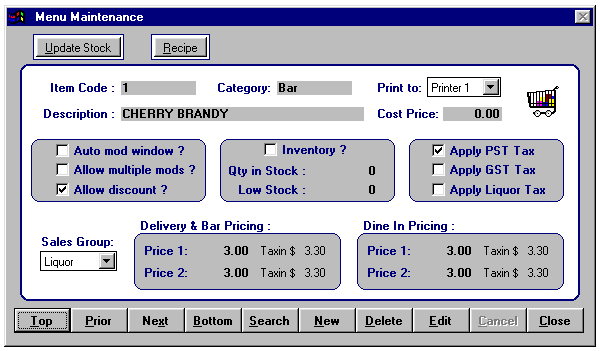
Menu Item Maintenance
Manage each item you sell in this menu maintenance module
The 'Menu Maintenance' allows you to maintain a database containing information on your menu items. You may define here any of 5 kitchen printers to which this item will print when ordered.
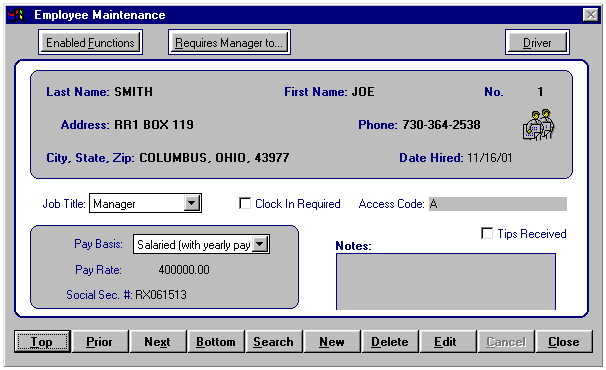
Employee Maintenance
This module takes care of your employee program access rights and their personal information
The 'Employee Maintenance' allows you to maintain a database containing information on your servers, sales personnel, etc. Each employee can be assigned here a password, which when used identifies the employee to the system. SPR POS will then allor or disallow access to program features based on the employee's privileges.
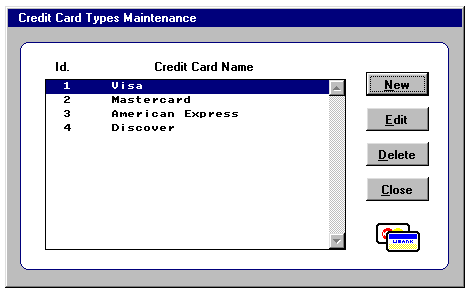
Credit Card Types Maintenance
Manage any type of credit card used by your customers
The purpose of this window is to let you define the credit cards types that your restaurant will accept. Be sure to create all the allowed credit card types, since you will need to select them from a list when you settle an order to this payment type.
Category & Modifier Maintenance
Group menu items into organized categories
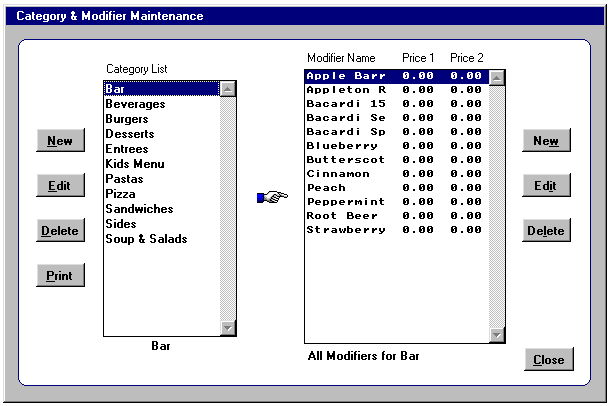
The purpose of the 'Category & Modifier Maintenance' window is to let you maintain the categories and modifiers that will use the menu items in your restaurant.
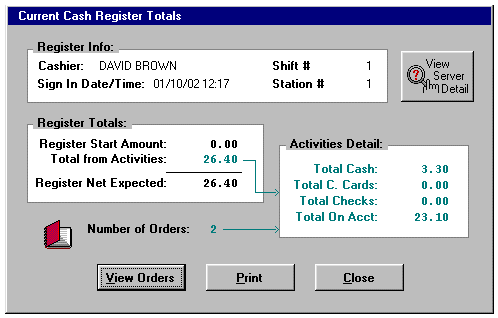
Day Totals
Take a look at the snap shot of a current day's or shift's sales performance
This option displays the total amount of money collected for the current shift. A shift starts when the cashier signs in, and it will last until he signs out.
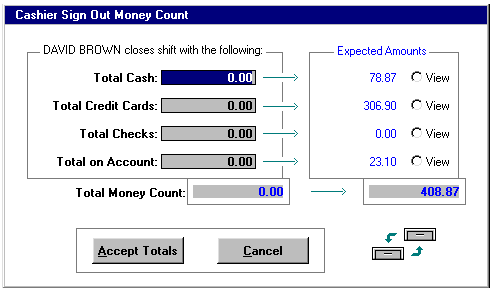
Cashier Sign Out
Ensure your cashier is accountable to the cash he / she collected
When a cashier has finished his / her shift, he or she should sign out of the current register using this window. Here the cashier will need to perform a count of the amounts collected in his / her register during the shift.
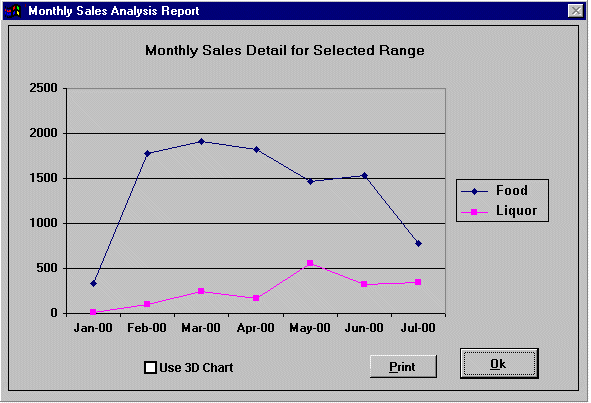
Monthly Sales Analysis
A key management performance report with graphics
This window shows a comprehensible Monthly Sales Analysis Report. In addition, SPR POS also provides similar Daily, Weekly, Quarterly and Yearly reports. If you want to produce a 3 dimension graphic, just click on the 'Use 3D Chart' button.
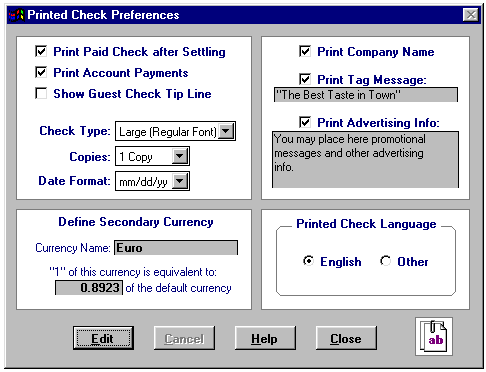
Check Preferences
Customize your invoice / printed checks
The window is the place where you can customize your restaurant's printed checks or invoices. The default check is in English, but you can edit and save it using your own language. You can also invoice in two different currencies.
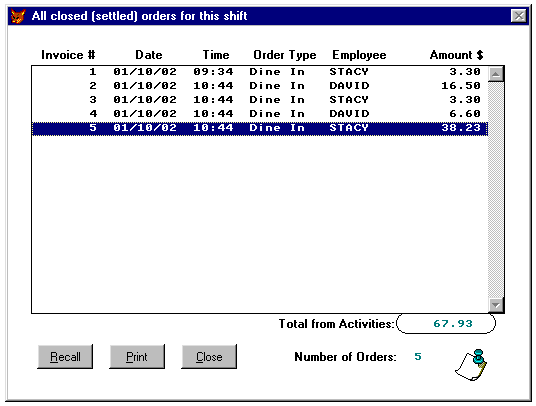
Settled Orders Detail
Quickly view details of a paid order
This Settled Orders Detail is always displayed ordered by invoice number, and it is very useful to quickly recall an already settled order. The procedure to recall a given order is very simple: Just use your mouse or the Up and Down keys to highlight this order and then hit the ENTER key to confirm.
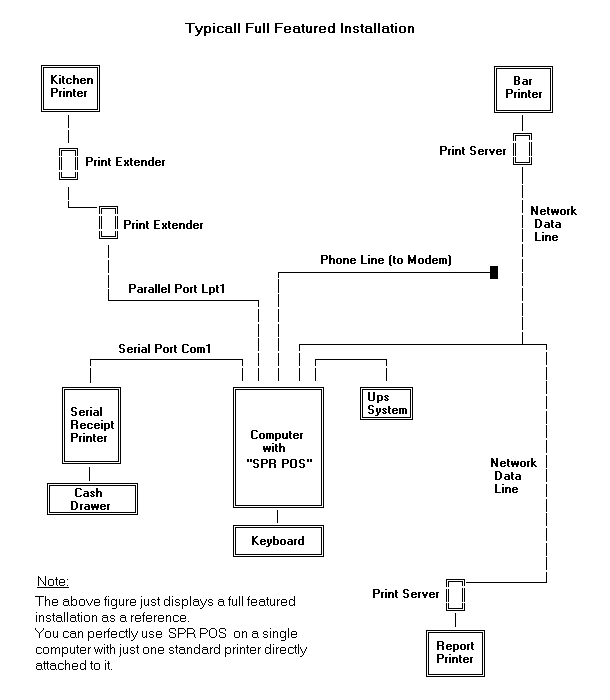
Full SetUp Diagram
Diagram of a full setup installation of SPRPOS
The image below just displays a full featured installation as a reference. You can perfectly use "SPR POS" on a single computer with a standard printer directly attached to it to process your orders.
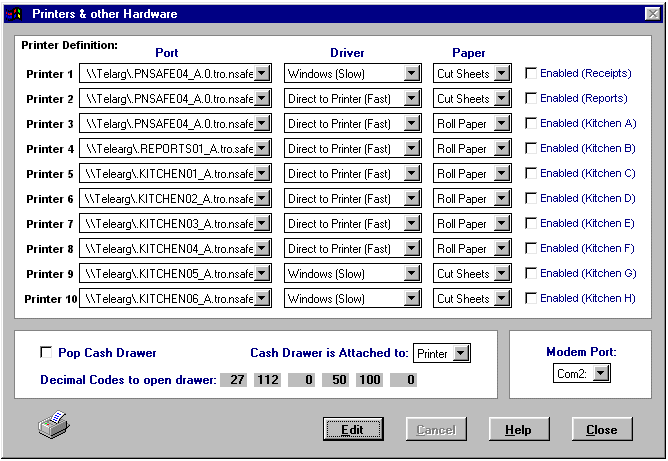
Printers & other Hardware
Manage each hardware connected to SPR POS
SPR POS has been designed to use a variety of industry standard and receipt printers. This window allows the user to define up to 10 remote or kitchen printers. A cash drawer and a modem for calling customers can also be setup using this window.
Main Menu Language
Ability to change the main menu language
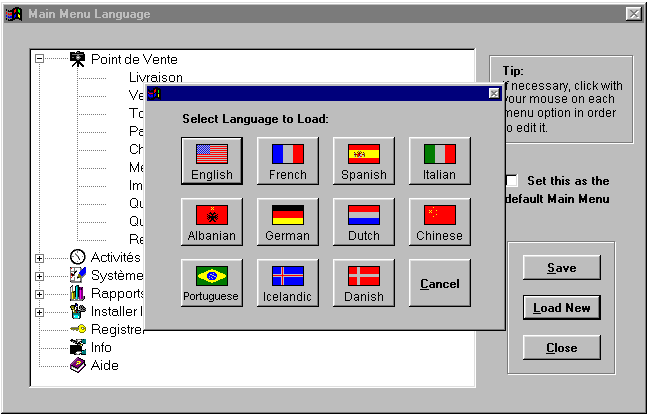
This window is the place where you can configure the main menu options of SPR POS using your own language. The default language is English, but you can display the program's main menu options in any of the following available languages : English, French, Spanish, Italian, Albanian, German, Dutch, Chinese, Portuguese, Icelandic and Danish.
Frequent Diner Reward Program
Built-in Customer Reward System Module
Rewarding your loyal restaurant customers similar to how airlines reward their loyal customers is one way to keep your restaurant revenues steady and to keep your business above the competition.
REMEMBER, keeping customers will cost you less compared to getting new customers.
In SPR POS for Restaurant©, you will have the capability to implement and monitor a Frequent Diner Program.
To enable this, go to System Setup > Frequent Diner Program (please see below).
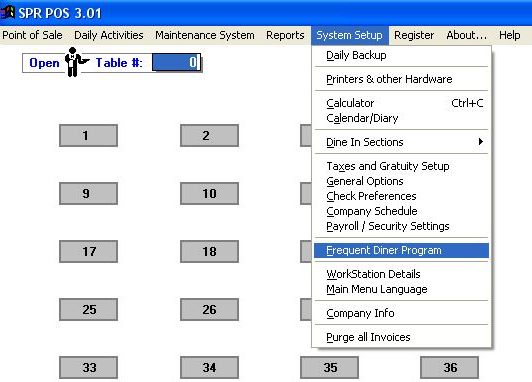
Once you click on the 'Frequent Diner Program' menu item, a dialogue box will come out below:
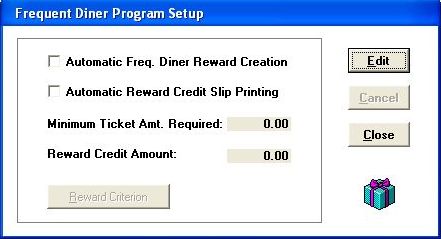
This is where the user may setup a reward program for his loyal customers.
Example: By using this option, you can have the system to automatically generate a credit of $15.00 for any customer who has accumulated purchases for $100.00
You can can even have the system to automatically print a coupon for such customer, specifying the "Reward Credit" just added to his account.
Company Information
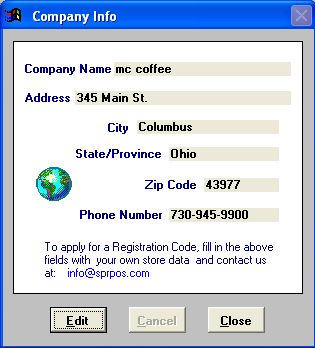
This window allows you to define the name of your company, as well as the address, city, state, zip code and telephone number. These facts are used to generate a unique registration code specially for you when you purchase the program.
Download the program now and try it out for free.